
Set up a custom OAuth Client ID for Google Drive
Google Drive connections rely on OAuth, which lets you grant access without revealing your Google password. For most users, the standard connection process is sufficient. If you would rather work through your own Google Cloud project, you can generate a custom OAuth Client ID and Client Secret, then provide those details when you add Google Drive to Air Cloud Analyzer.

This guide covers the full setup process: creating a Google Cloud project, enabling the Google Drive API, setting up the OAuth consent screen, creating the desktop OAuth client, and entering the credentials during the Google Drive connection flow.
Before you start
You need a Google account, access to the Google Cloud Console, and the Google Drive account you plan to connect. The Google account used to create the OAuth client does not need to be the same account that owns the Drive files, although using the same one can make testing easier.
Keep the Client Secret confidential. Together with the Client ID, it identifies your app during the authorization process.
1. Create a Google Cloud project
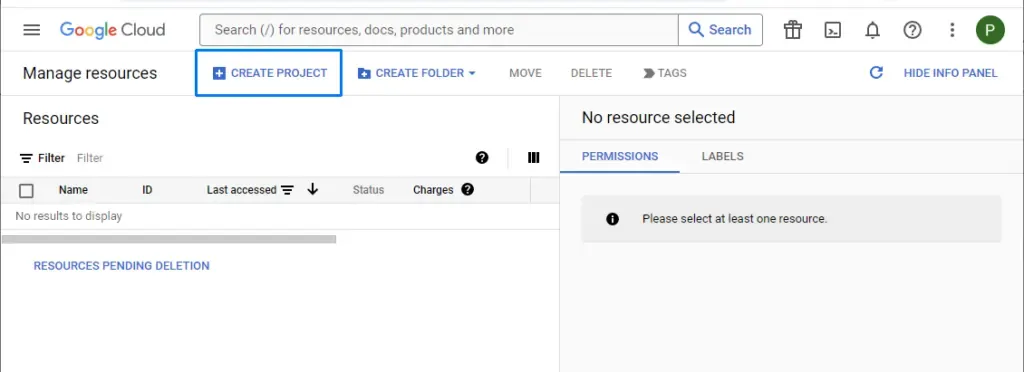
Open the Google Cloud Console and navigate to the Resource Manager. Create a new project for this integration. A clear name like “Google Drive Custom ID” will make the project easier to recognize later.
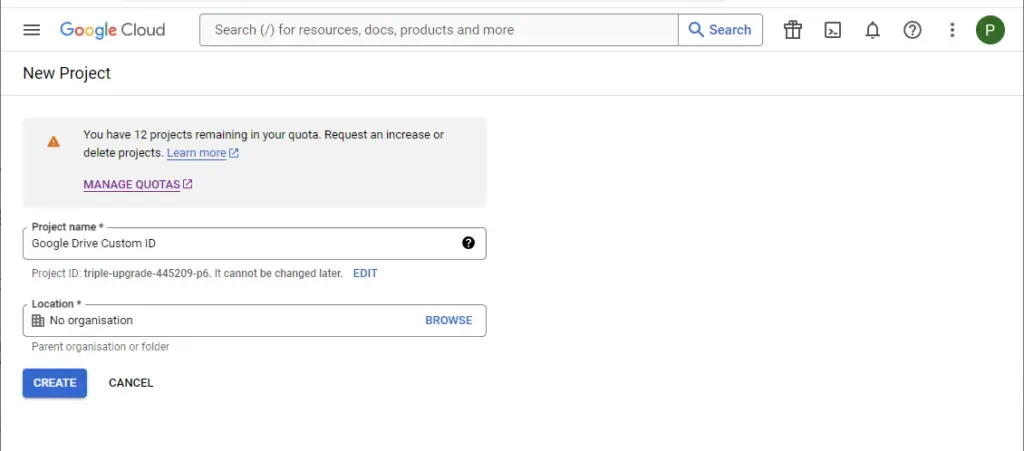
When Google prompts you for the project name, enter the name you want to use and create the project.
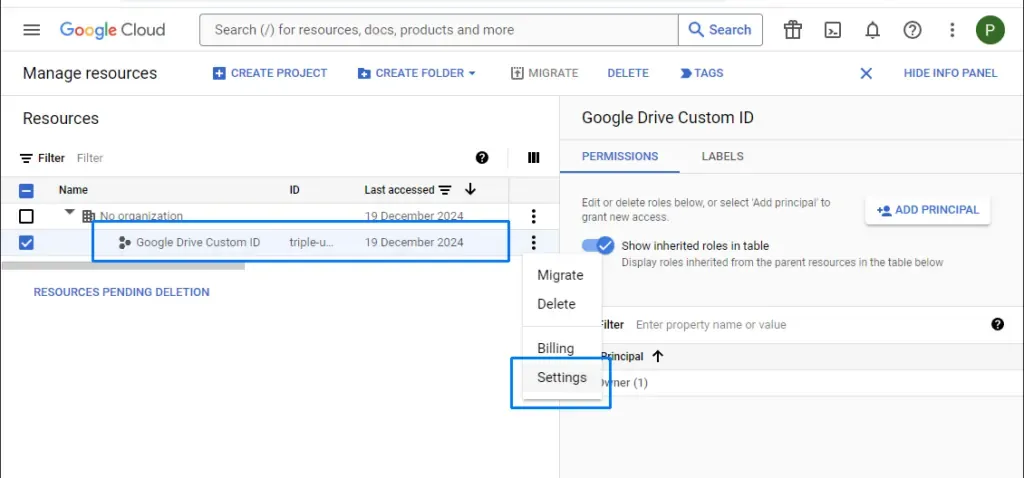
Once the project has been created, select it and open its settings so the remaining steps are applied to the right project.
2. Enable the Google Drive API
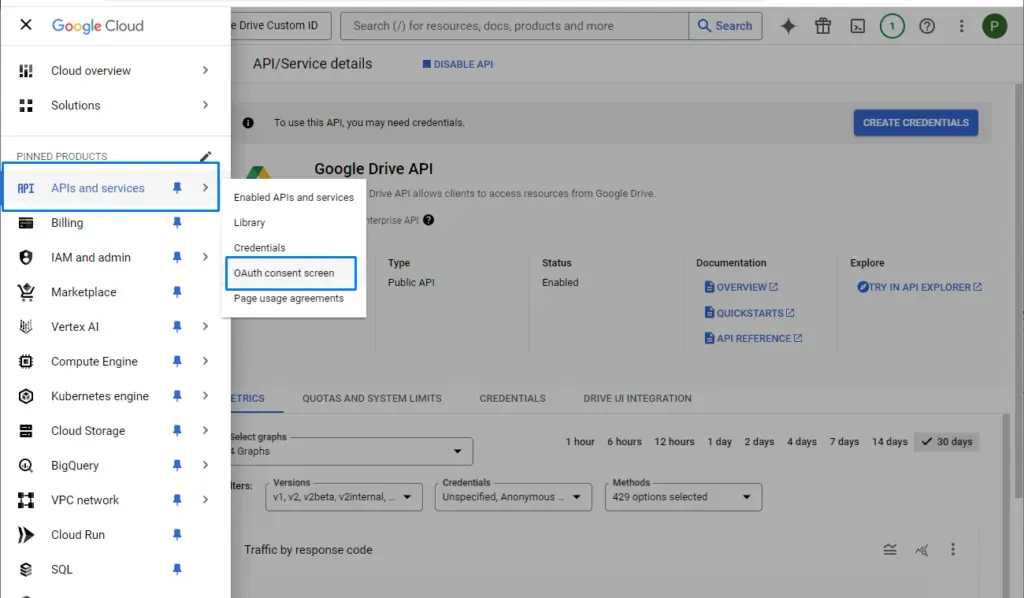
Open the main Google Cloud menu while the new project is selected.
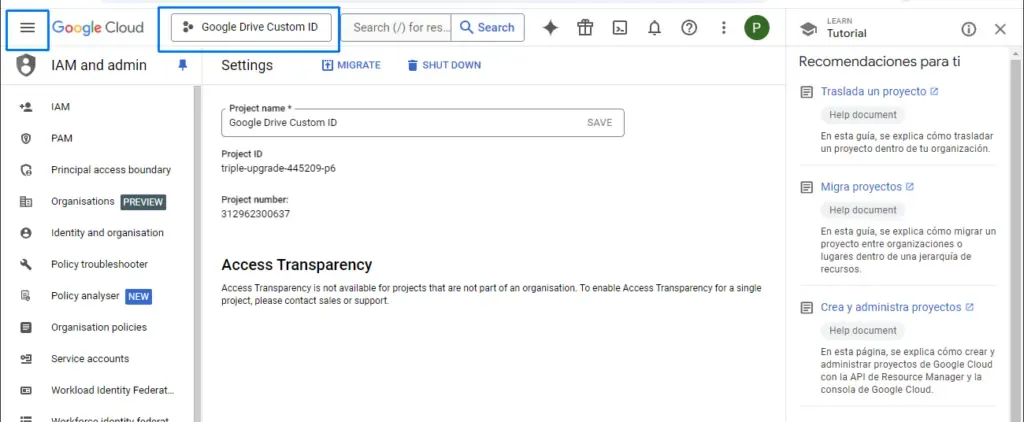
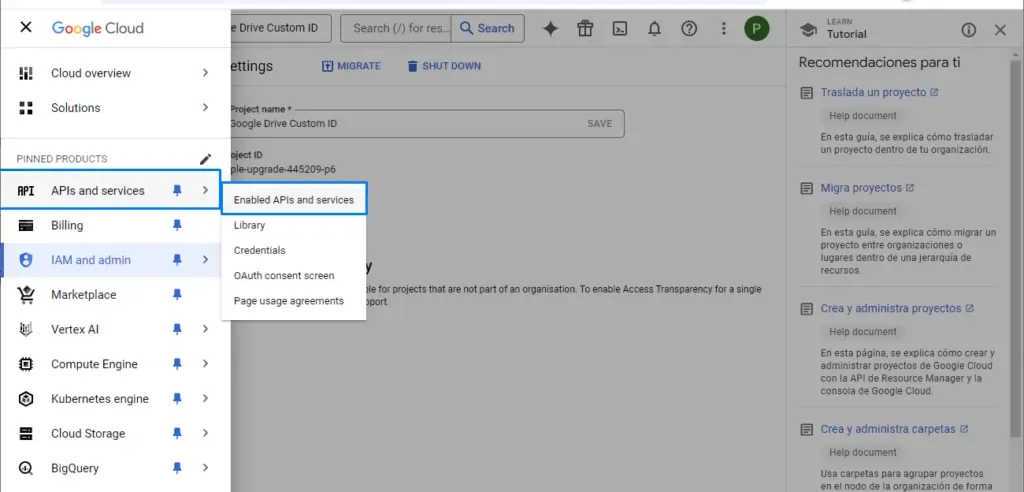
Go to APIs & Services, then select Enabled APIs & services.
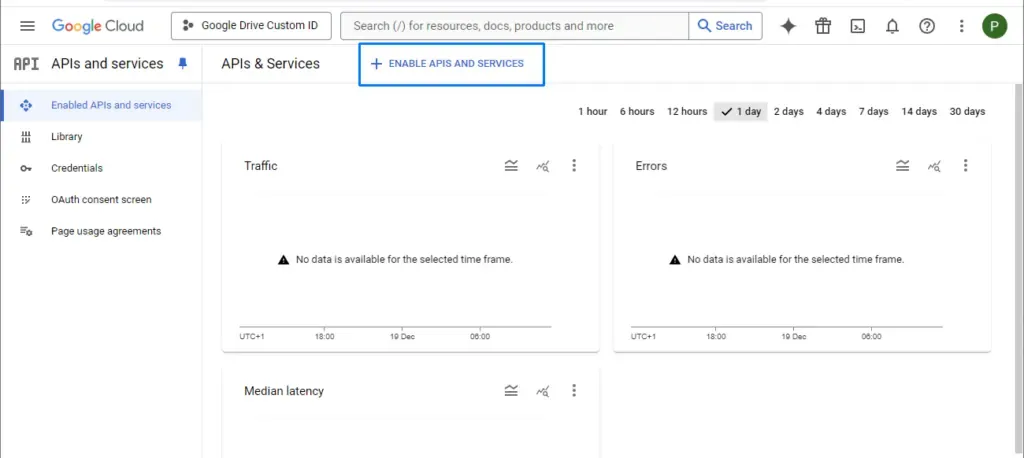
Choose the option for enabling APIs and services.
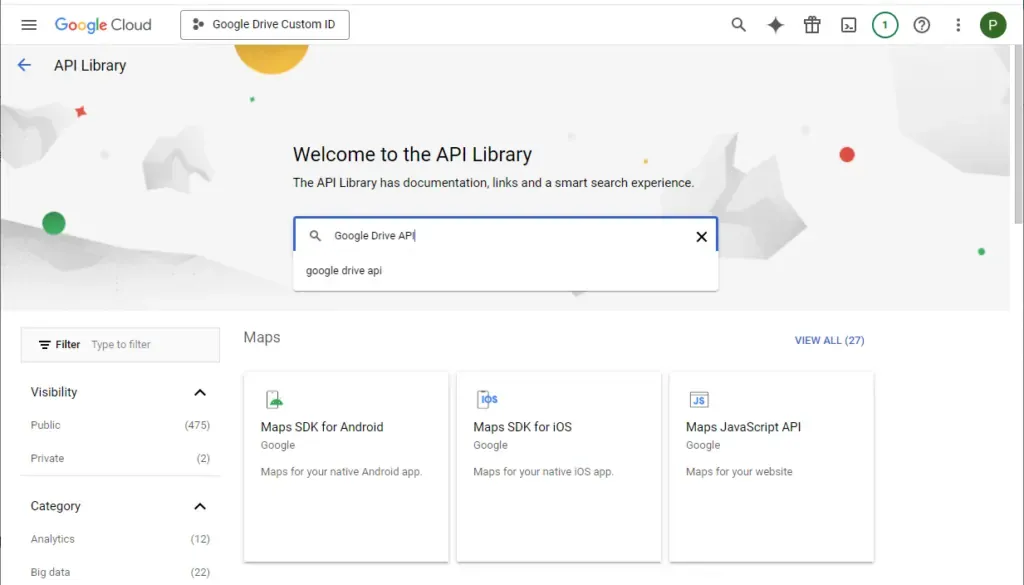
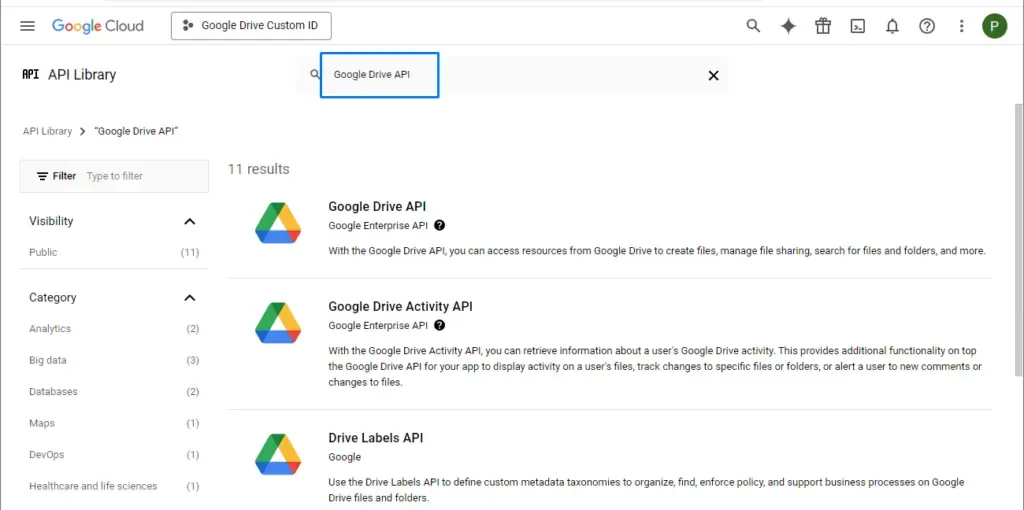
In the API Library search field, look for “Google Drive API”.
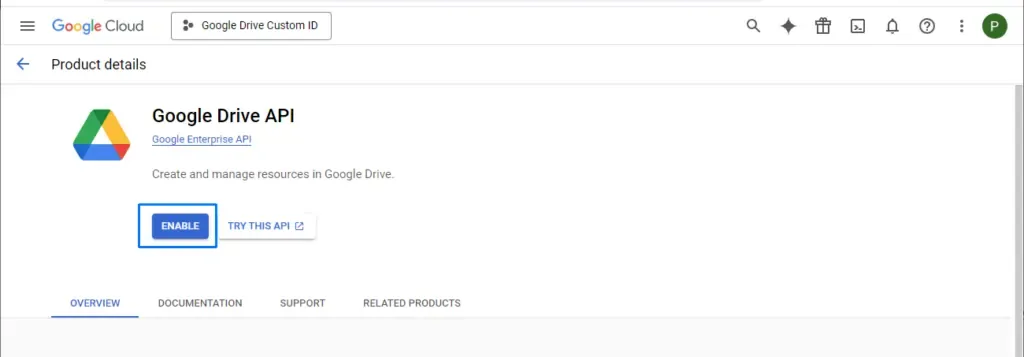
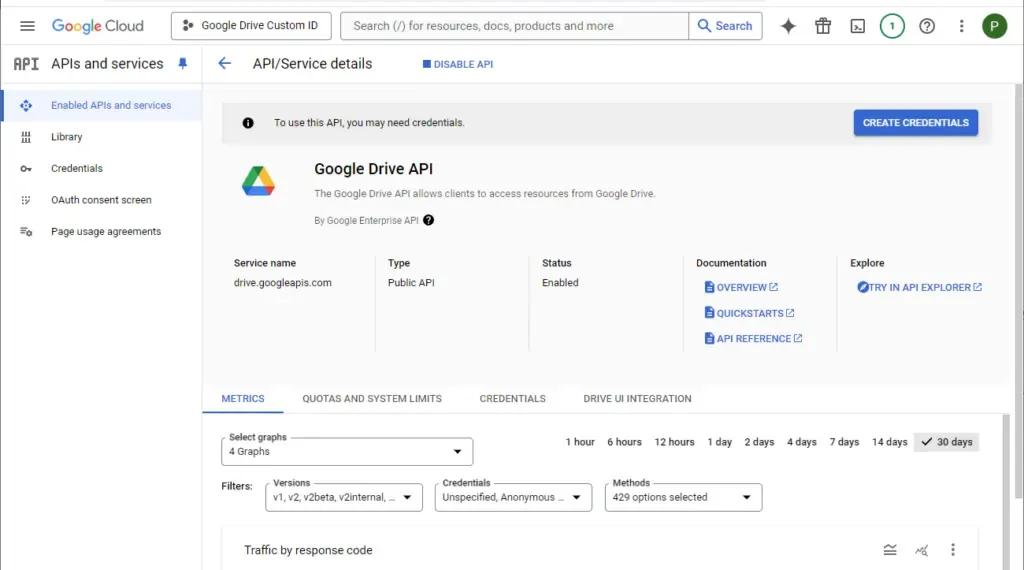
Select Google Drive API from the search results and enable it for your project.
3. Configure the OAuth consent screen
Go back to APIs & Services and open the OAuth consent screen section.
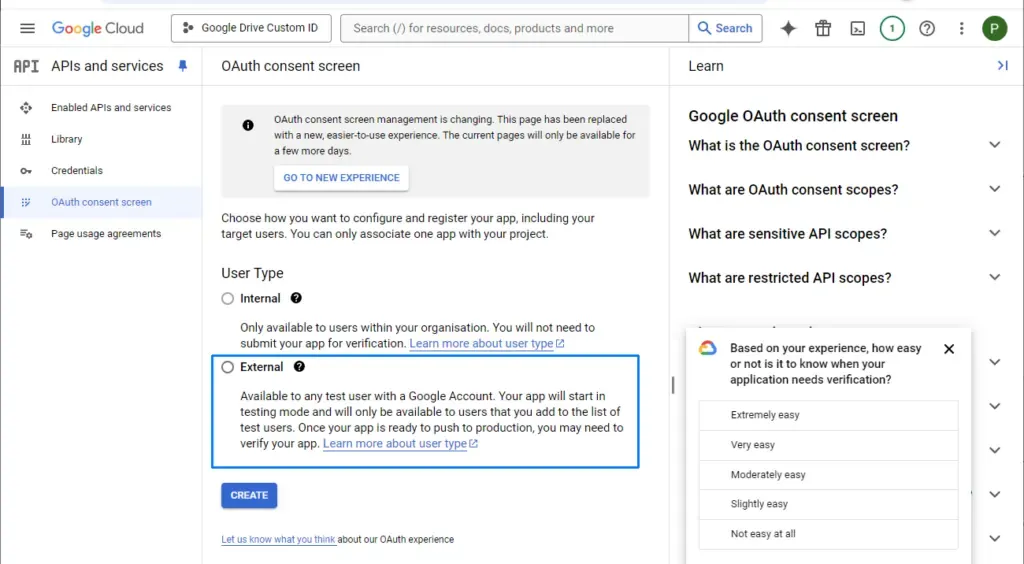
Choose External if the Google Drive account may be outside your Google Workspace organization. Choose Internal only if the OAuth client will be used within your own organization.
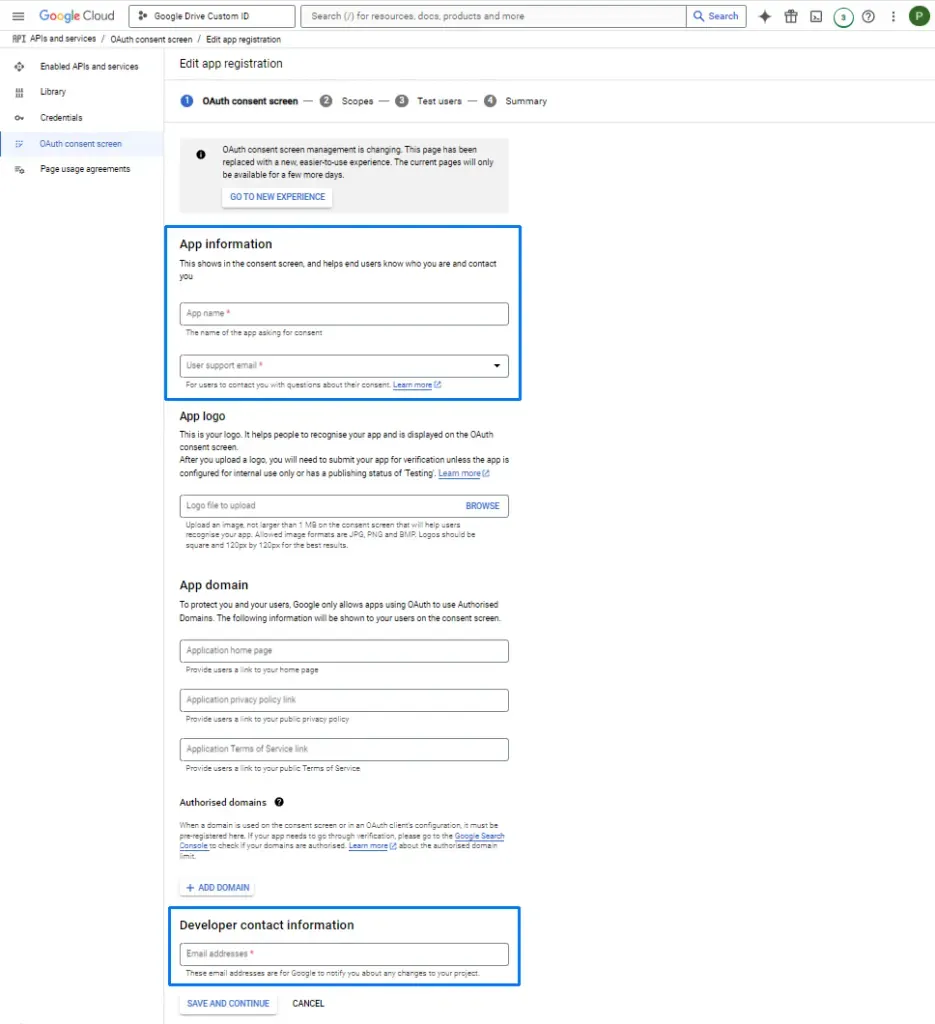
Enter the app details. The app name can match the project name, for example “Google Drive Custom ID”. Use an email address you control for both the user support email and the developer contact information.
4. Add the Google Drive scope
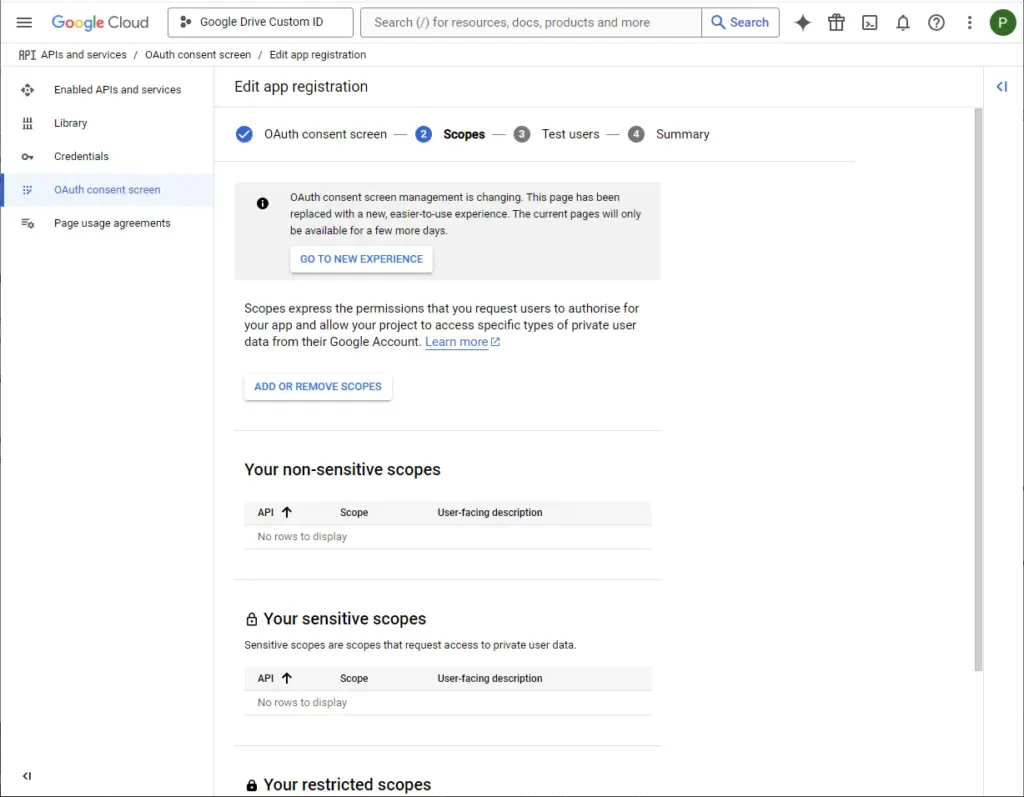
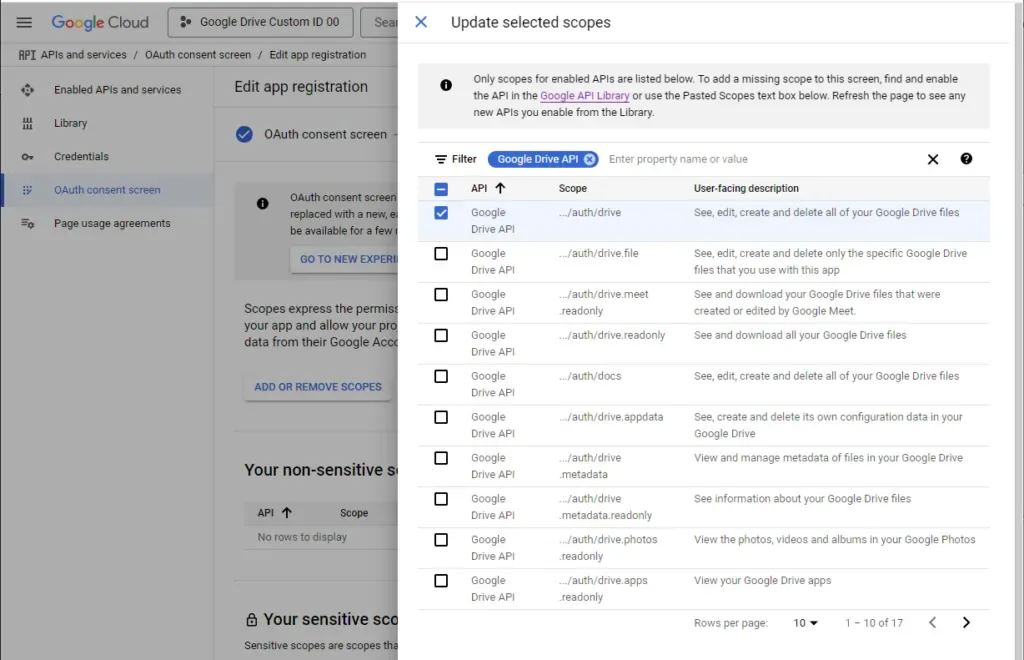
When you get to the scopes step, choose Add or remove scopes.
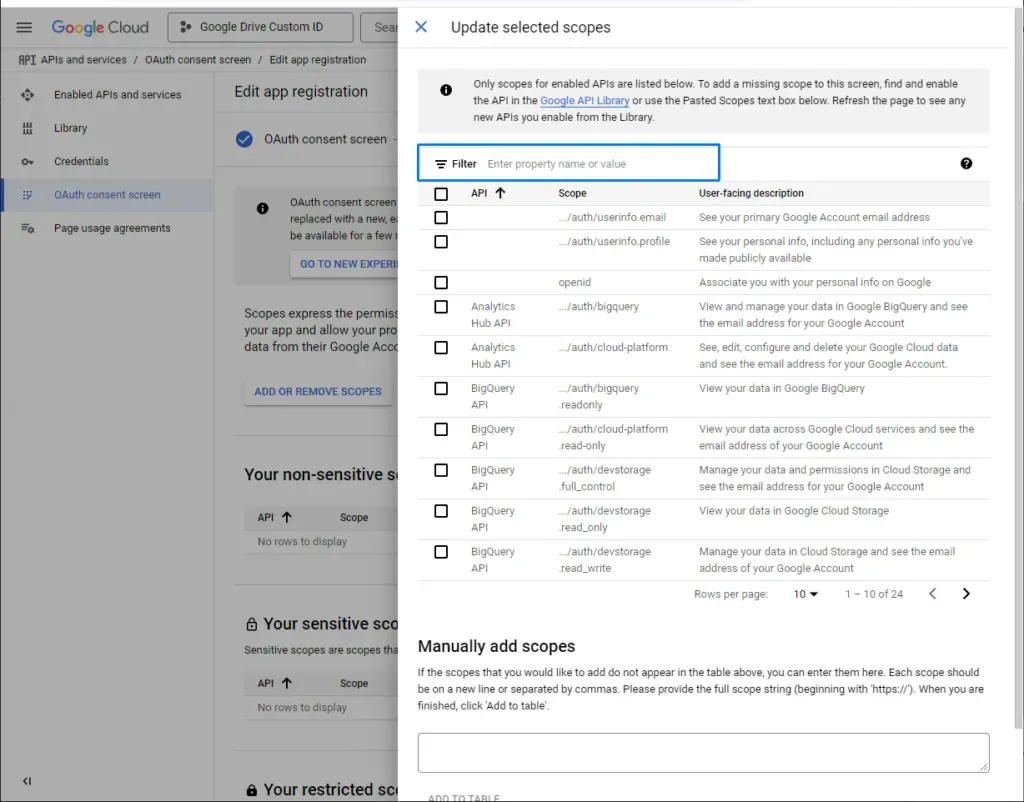
Filter the list of scopes by Google Drive API and select the Drive scope that grants access to Drive files. Save your selection.
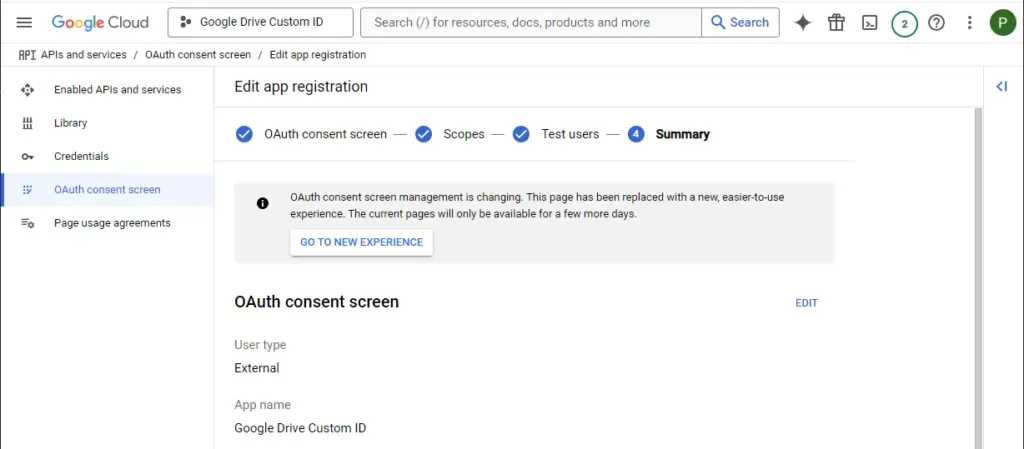
Save the consent screen settings at the bottom of the page.
5. Add a test user
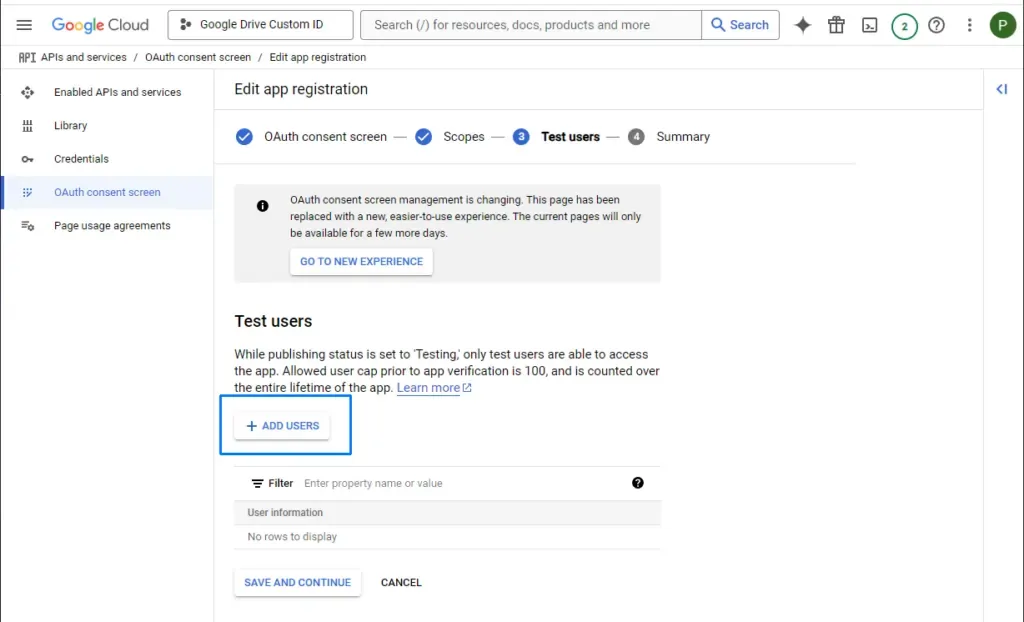
If the app is still in testing mode, add yourself as a test user. This lets your Google account authorize the app before it is published.
6. Create the OAuth client credentials
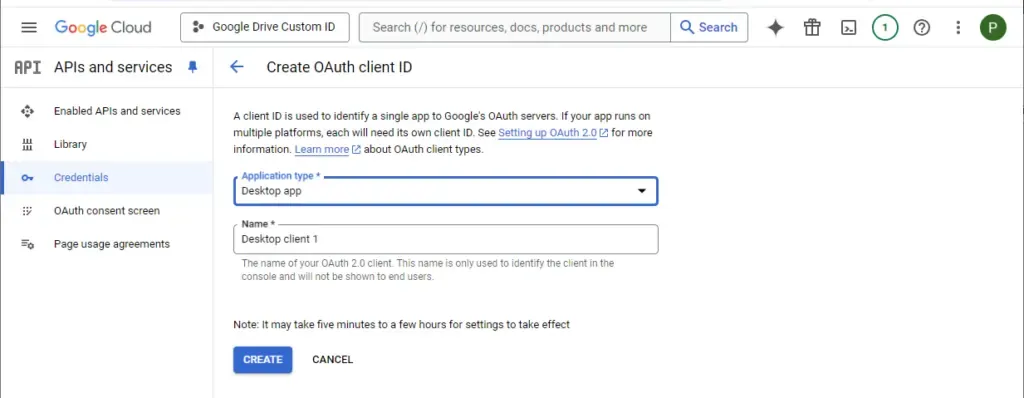
Open Credentials, choose Create credentials, and select OAuth client ID.
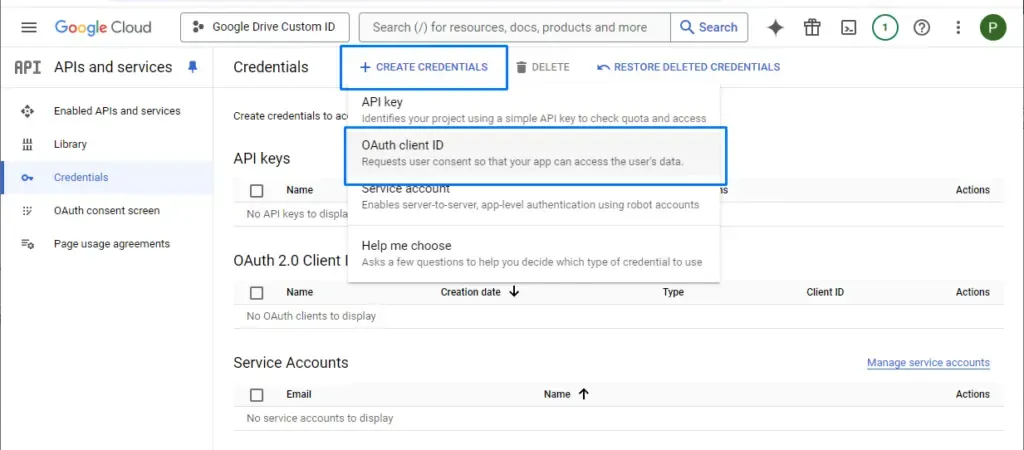
For the application type, choose Desktop app. The default name is acceptable, but you can rename it if you manage multiple OAuth clients.
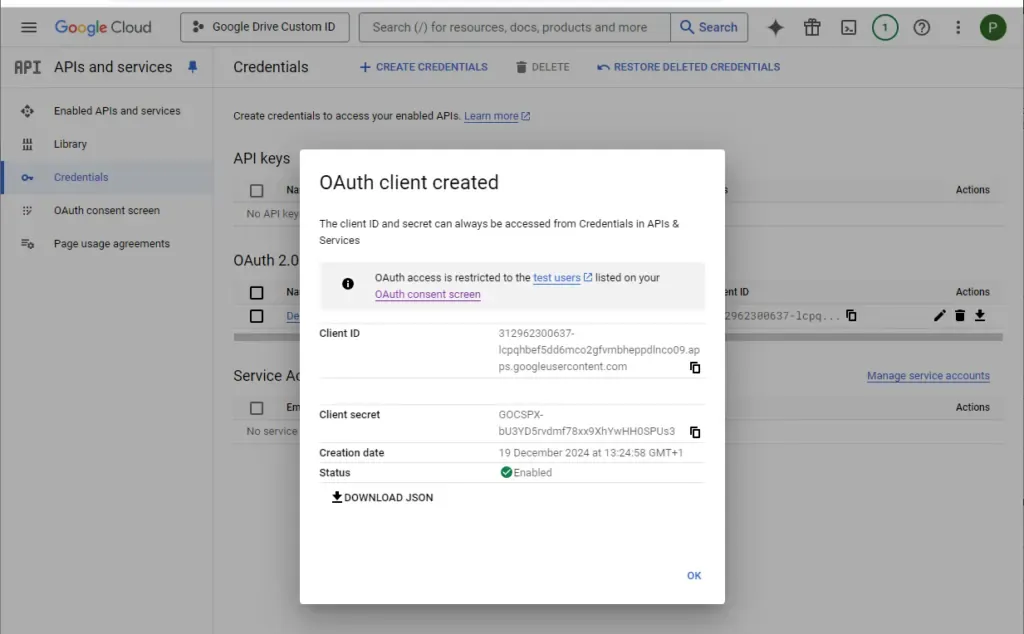
Google will create a Client ID and Client Secret. Copy both values and keep them somewhere secure until you enter them in Air Cloud Analyzer.
7. Publish the OAuth app
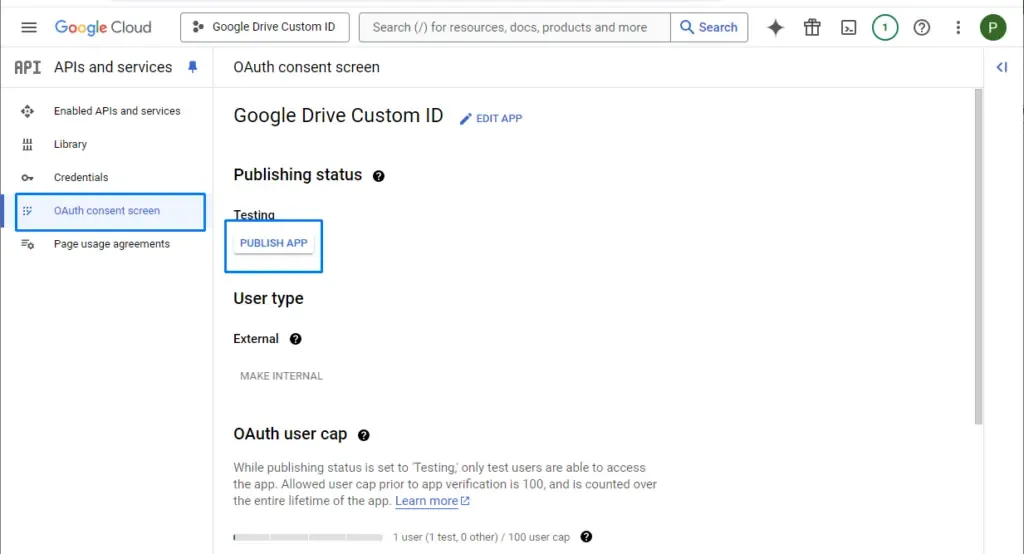
Return to OAuth consent screen and publish the app. For personal use with your own Client ID and Client Secret, you do not need to submit the app for Google verification before using it yourself.
8. Connect Google Drive in Air Cloud Analyzer
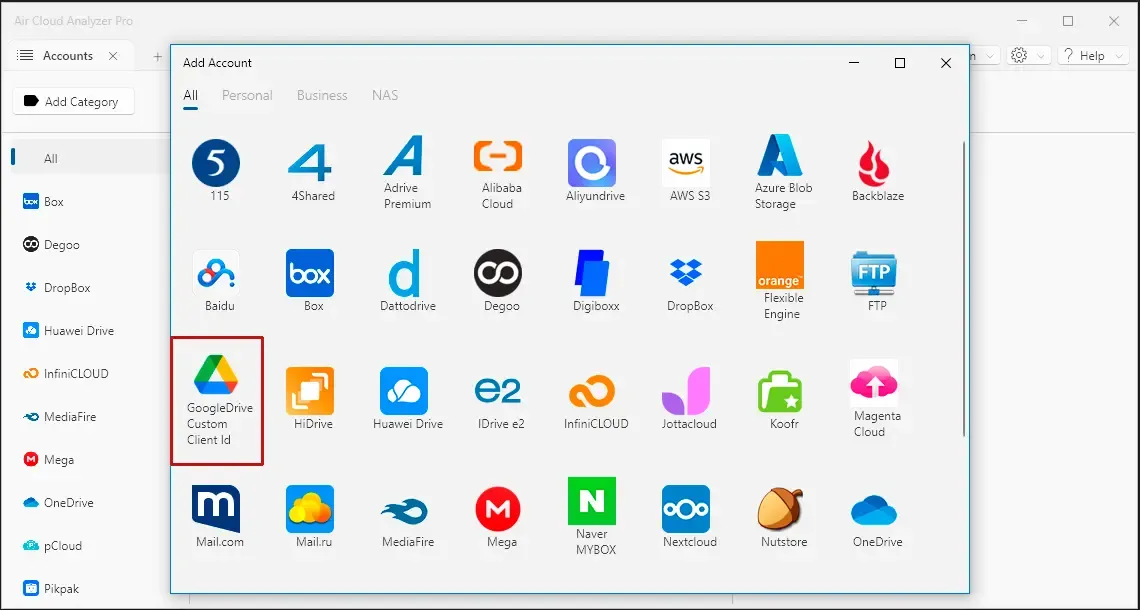
In Air Cloud Analyzer, add a new Google Drive account and choose the custom Client ID option.
Enter the Client ID and Client Secret that were generated in Google Cloud.
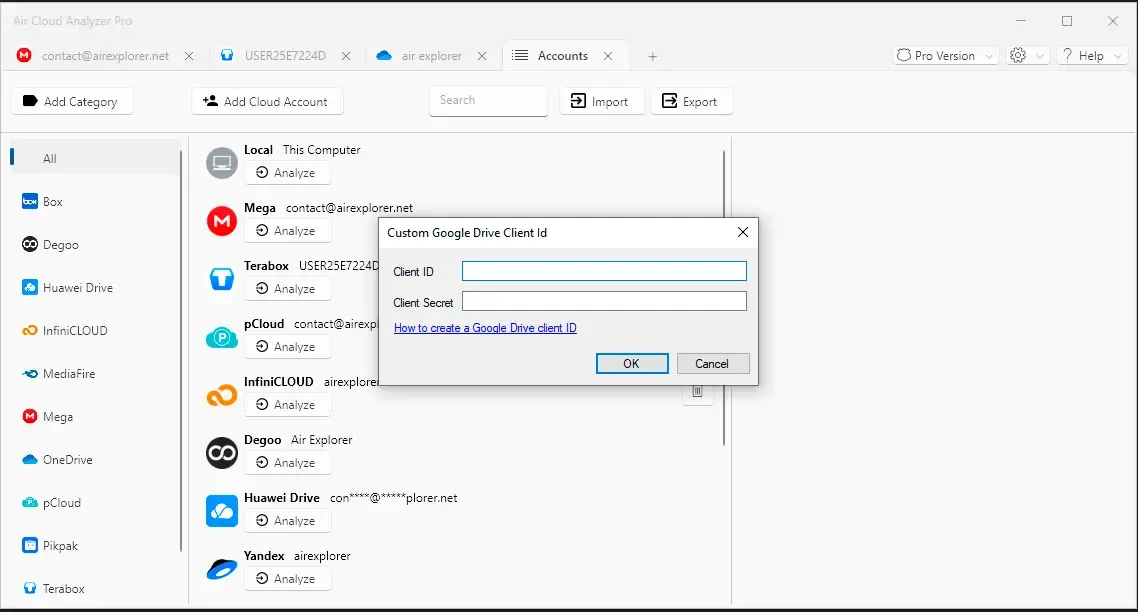
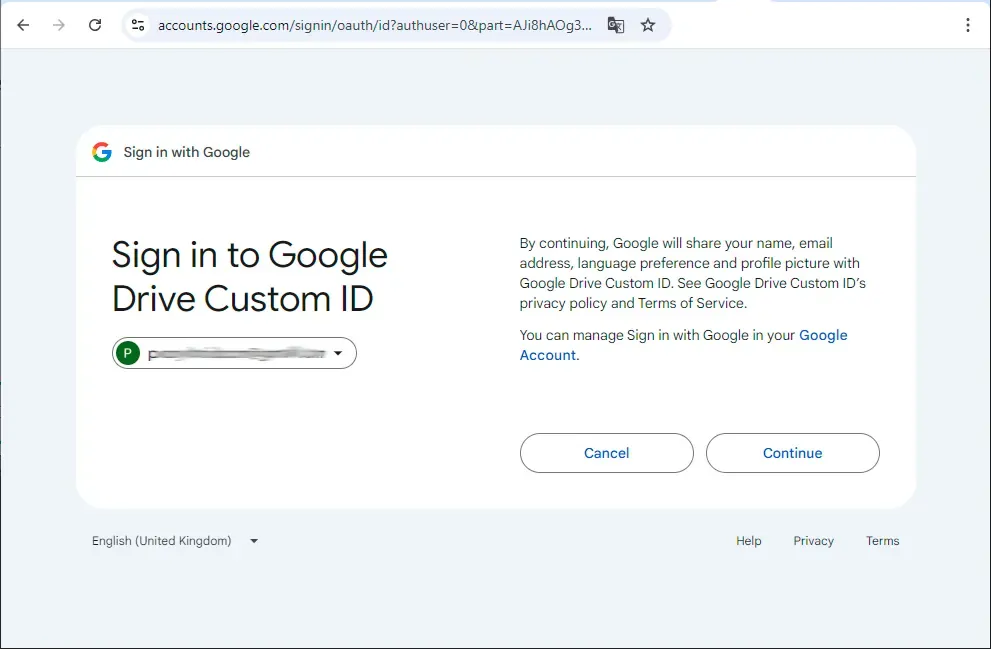
The browser authorization flow will open. Sign in with the Google account you want to connect with Air Cloud Analyzer.
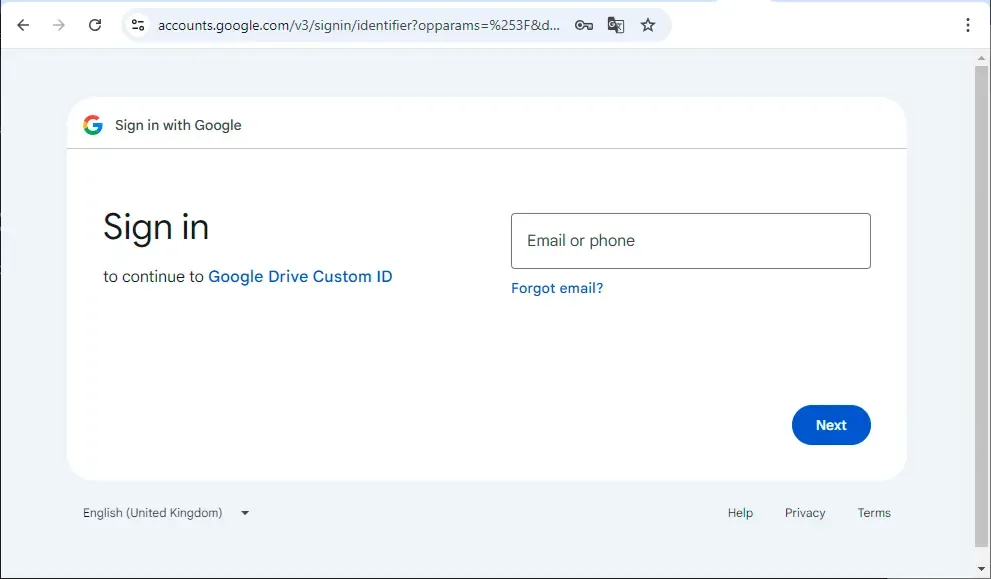
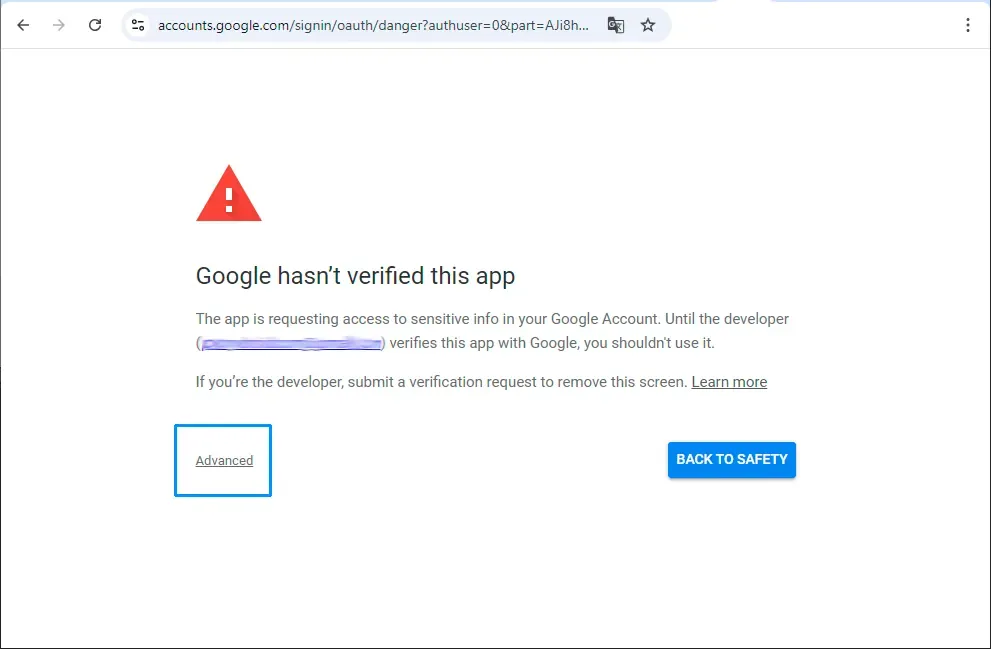
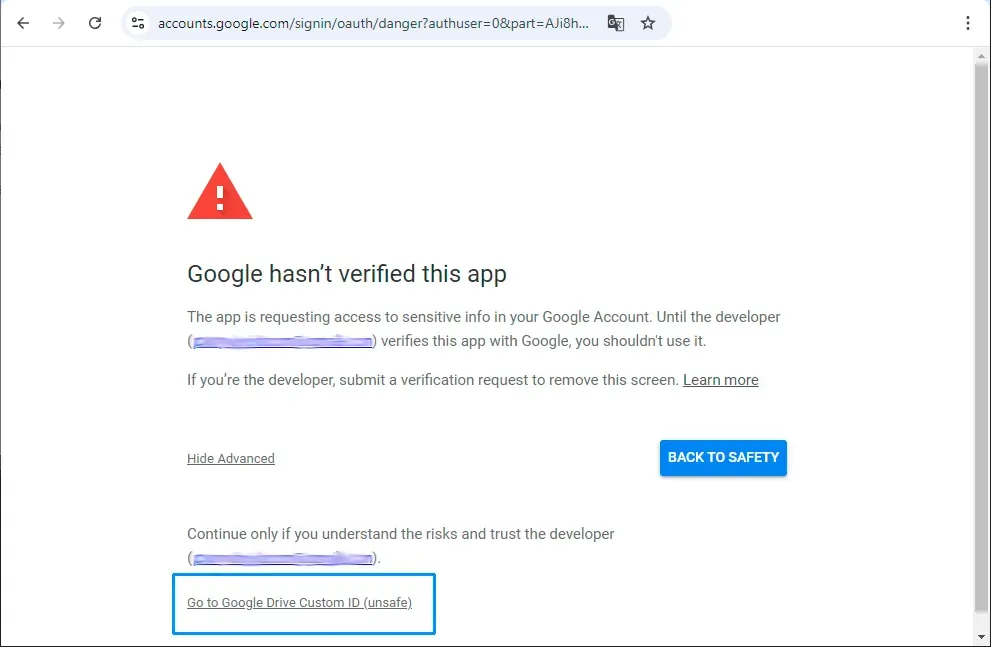
Because you are using your own OAuth app, Google may display an unverified app warning. Review it carefully and continue only if the app name and account match the setup you configured.
Continue through the authorization screen.
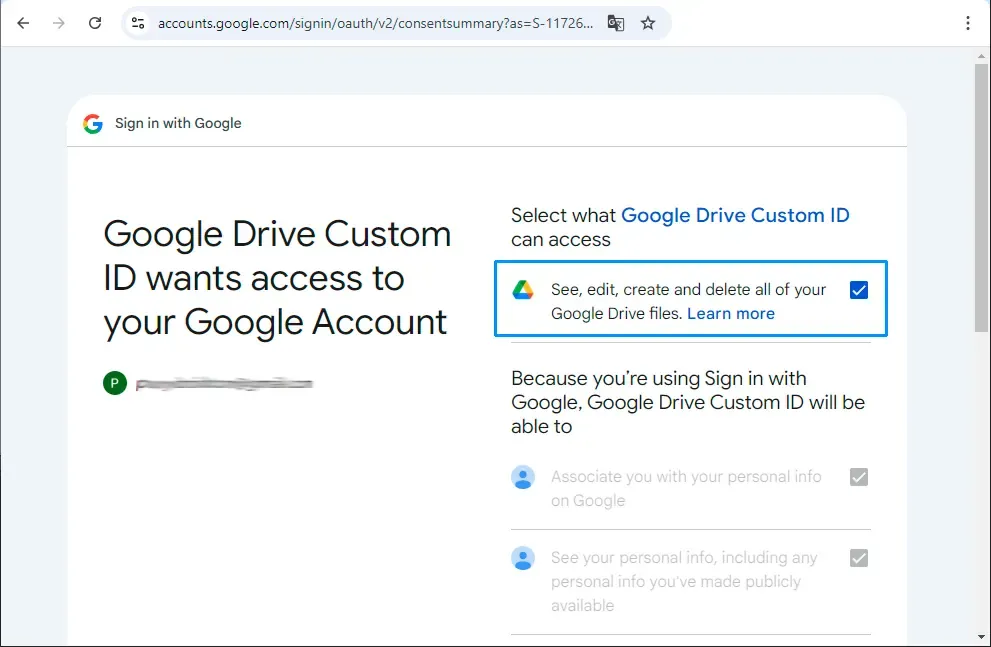
Review the requested Drive permission. Air Cloud Analyzer needs access to Drive so it can analyze file sizes, file types, duplicates, dates, and storage usage.
Confirm Drive access if everything matches your configuration.
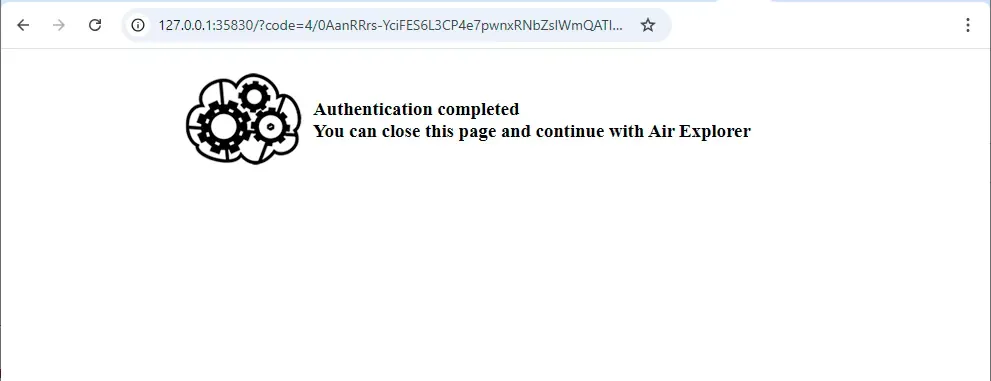
After authorization is complete, the Google Drive account will appear in Air Cloud Analyzer and be ready to analyze.
Final checks
If the connection fails, check that the Google Drive API is enabled in the same project where you created the OAuth client. Also make sure your Google account is listed as a test user if the app is still in testing mode, and confirm that you selected Desktop app when creating the OAuth client.
Once the account is connected, run a storage scan to review your largest files, duplicate files, file type distribution, and older content that may be ready to archive or delete.
Ready to analyze your Google Drive storage using your own OAuth credentials?
Open Air Cloud Analyzer