

How to Analyze and Clean Your OneDrive with Air Cloud Analyzer
Running out of space in OneDrive but not sure what’s filling it up? You’re not alone. OneDrive shows you a total storage bar, but it doesn’t tell you which files or folders are actually consuming your gigabytes. That’s exactly the problem Air Cloud Analyzer solves.
In this guide, you’ll learn how to connect OneDrive to Air Cloud Analyzer, run a full storage analysis, and use the results to find large files, duplicates, and old data you no longer need, all without downloading a single file.
What Is Air Cloud Analyzer?
Air Cloud Analyzer is a native desktop app for Windows and Mac that scans your cloud storage and local drives to give you a complete visual picture of how your space is being used. It works with more than 30 cloud services (including OneDrive, OneDrive for Business, Mega, Dropbox, and SharePoint) and it analyzes your hard drive with the same level of detail.
The key difference from other tools: Air Cloud Analyzer reads only file metadata (name, size, and date), never the file contents. That means fast, secure scans with no downloads and no waiting.
Step 1: Download and Install Air Cloud Analyzer
Head to the official website and download the installer for Windows or Mac. Run the installer, follow the on-screen steps, and the app will be ready in seconds. No complex setup required.
Step 2: Connect Your OneDrive Account
Open Air Cloud Analyzer and add a new account. Select OneDrive from the list of supported services and sign in using Microsoft’s official login page.
Security matters here: Air Cloud Analyzer uses each provider’s official authentication protocols. Your credentials are never stored on external servers, and your file contents are never uploaded anywhere.
Step 3: Run the Analysis
Once OneDrive is connected, click the Analyze button. A window will let you choose what to scan:
- Your entire OneDrive, for a complete storage overview.
- A specific folder, if you want to audit just one project or directory.
Choose your option and the scan begins. Since the app only reads metadata, the analysis is quick even for accounts with thousands of files.
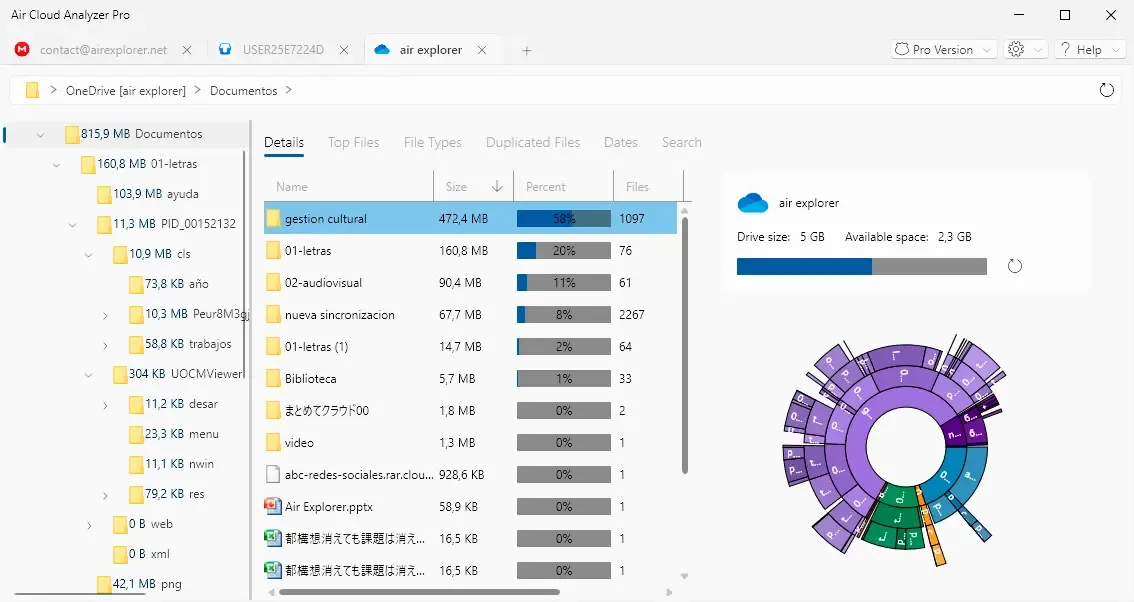
Step 4: Explore the Results
When the analysis finishes, you get a full visual breakdown of your OneDrive storage. Here’s what you can do with it:
Find Your Largest Files
The Top Files view lists the biggest files in your account, sorted by size. This is the fastest way to reclaim space, deleting or archiving a handful of huge files often frees up more space than removing hundreds of small ones.
See Storage by File Type
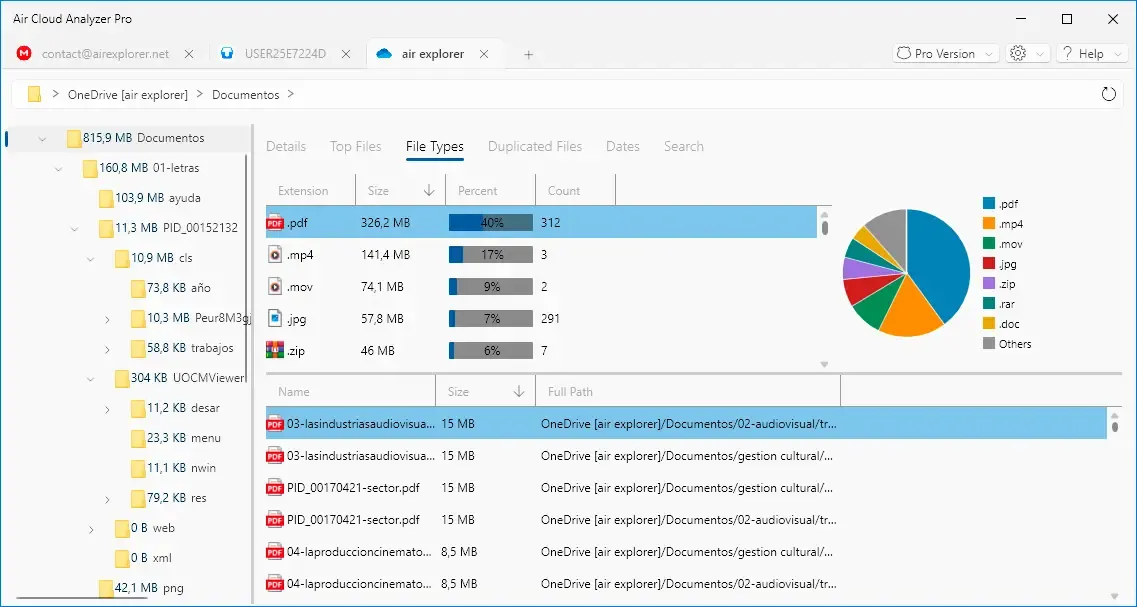
Find out exactly how much space your videos, photos, documents, or archives are consuming. Interactive sunburst charts let you drill down into any folder and instantly spot where space is concentrated.
Locate Duplicates and Delete Them
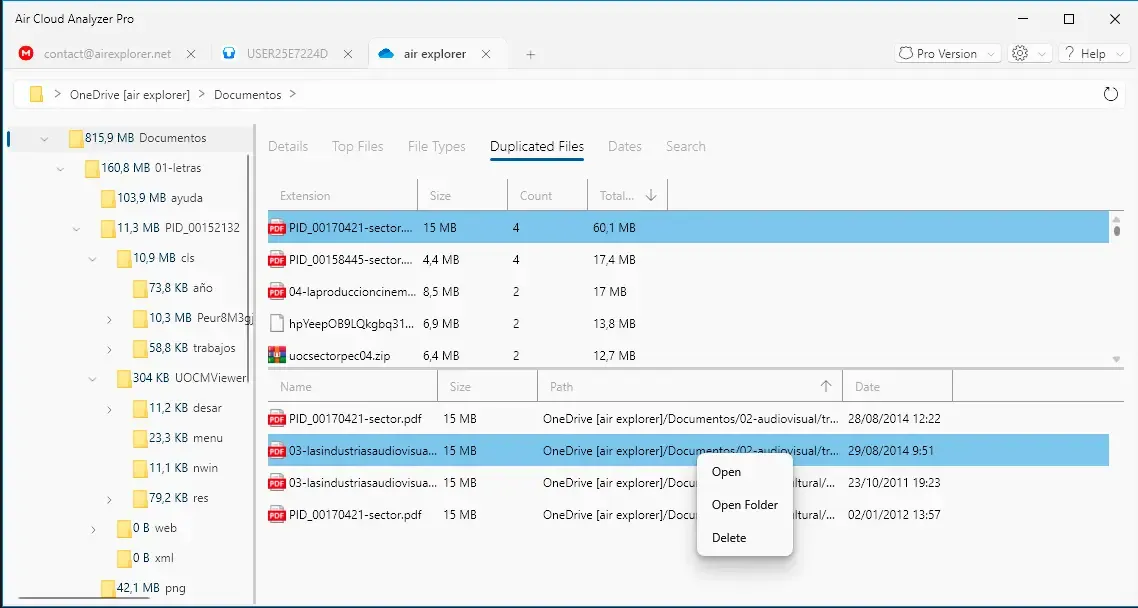
The duplicate finder identifies repeated files across your OneDrive, and even across multiple clouds if you have several accounts connected. Best of all, you can delete duplicates directly from the app, without switching to the OneDrive web interface.
Filter Files by Date
Sort your files by modification date to surface old data you haven’t touched in years. This is ideal for archiving projects, cleaning up forgotten backups, or running a data lifecycle audit for compliance purposes.
Search Across Everything
The built-in global search finds any file by name across OneDrive, your other connected clouds, and your local drives, all at once.

Why Analyze OneDrive with Air Cloud Analyzer?
Here’s a quick summary of the benefits:
| Benefit | What it means for you |
|---|---|
| No downloads needed | Scans read only metadata, so analysis is fast and secure. |
| Visual clarity | Sunburst charts show instantly where your space goes. |
| Real savings | Find large files and duplicates before paying for more storage. |
| Unified view | Analyze OneDrive together with your local disk and other clouds. |
| Privacy by design | Official login protocols, with no passwords or file data stored externally. |
| Business-ready | Works with OneDrive for Business and SharePoint for storage audits. |
Need to Move Files, Not Just Analyze Them?
If after cleaning up you want to transfer, sync, or back up files between clouds, take a look at Air Explorer, our companion app focused on file transfers and multi-cloud management. Air Cloud Analyzer tells you what to clean; Air Explorer helps you move it.
Take Control of Your OneDrive Today
Stop guessing what’s filling your OneDrive. Download Air Cloud Analyzer, connect your account, and in a couple of minutes you’ll have a complete map of your storage, plus the tools to clean it up safely.
Ready to see what is filling your OneDrive?
Download Air Cloud Analyzer